Creating a private simulation
Schools enrolling in the Bourstad Program can create private simulations at any time during the school year. Here are the steps to follow.
The creation of a simulation must be carried out by the Institutional Head of Bourstad within the school.
The steps listed below assume that an Institutional Head has logged into their account and the Institutional Head profile is displayed, which is the case at login.
-
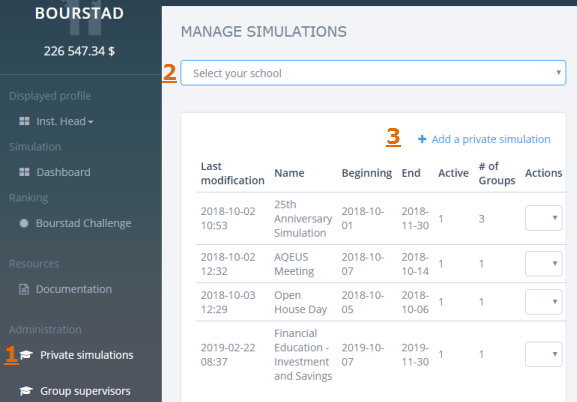
Request option Private Simulation in the Administration group of the Institutional Head menu
The Manage Simulations page is displayed.
-
Select your school from the drop-down list.
A table of the private simulations is displayed. If no private simulation was previously created, only the column headers of the table are displayed.
- Click on the link +Add a private simulation which appears above the table on the right.
-
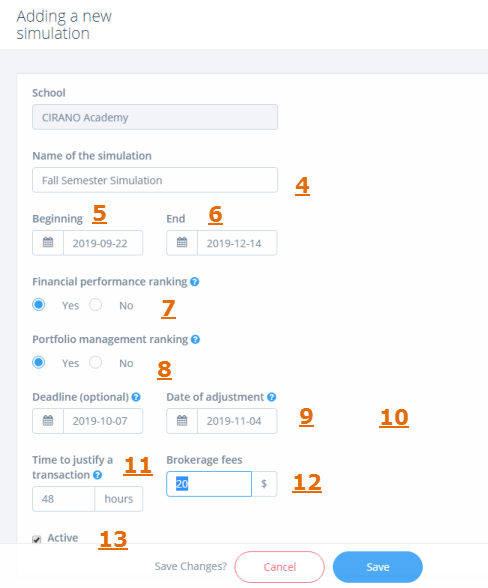
Name of the simulation. This designation will refer to the simulation in all
on-screen displays and related printouts.
Note: the name of a private simulation can not include the expressions concours Bourstad or Bourstad Challenge.
-
Beginning. Day of the beginning of the private simulation.
- The simulation starts at 0 am on the first day.
- The first day of a simulation falls between the beginning (August 1st) and the end (June 30th) of the school year for which the school registration is valid.
-
End. Day of the end of the private simulation.
- The simulation ends at 0h am on the last day
- The day of the end of a simulation must come after the first day of the simulation.
Note: If a simulation is to end at market close, for example Friday, November 17, 2019 at 4:00 pm, indicate the following day, for example November 18, 2019, as the ending day of the simulation. -
Financial performance ranking. Check yes if you want a ranking of financial performance to be produced by the Bourstad app.
-
Portfolio Management Ranking. Check yes if you want group supervisors and the Institutional Head to be able to display a portfolio management ranking for the simulation.
Note: Participants in a private simulation can not display the portfolio management ranking of their group or of all participants in a simulation
-
Deadline (optional) Check yes if you want to set a deadline to complete these portfolio management tasks
- Definition of the investor-client
- The portfolio management strategy
- The learning objectives of the participant
- The deadline is also the ultimate moment to activate an account in a private simulation.
Note: The deadline is 00:00 of the day indicated.Note: Not stipulating a deadline limits how many portfolio management measures the Bourstad application can compute. -
Date of adjustment Allows you to specify an additional due date to allow the participant to modify their original portfolio management strategy once.
Note: This field only appears if a deadline has been set
-
Time to justify a transaction. This parameter determines for how many hours after submitting a transaction, the participant can provide justifications to his transaction.
- The value for this parameter must be between 1 and 48
- Regardless of this setting, a participant will not be able to justify a transaction after the end of a simulation.
-
Brokerage fees. Indicate the amount in Canadian dollars that will be charged for transactions subject to brokerage fees. There are no brokerage fees for transactions on these securities:
- Currencies
- Exchange-traded funds of money market securities
- Actively managed mutual funds
Note: The amount of brokerage fees can not be changed after the start of a simulation. -
Active Click on the box to activate a private simulation. When a private simulation is active:
- a student can use an activation code to create his or her participation account in this private simulation up until the deadline, or if there is none, until the end date of the simulation; the activation of an account can be done even before the start of the simulation.
- a simulation participant can perform authorized transactions or portfolio management transactions between the beginning and the end of the private simulation.
- a particpant can consult the reports describing his operations as well as the financial performance rankings from the beginning of the simulation, even after the end of the simulation.