Schools that join the Bourstad Program can create different groups in a private
simulation and in the Bourstad Challenge. For each group, one or more group supervisors can be
designated. Here are the steps to assign a group supervisor and assign responsibility for one or
more groups.
The creation of a simulation must be carried out by the Institutional Head of Bourstad
within the school.
The steps listed below assume that an Institutional Head has logged into their account and the Institutional Head profile is displayed, which is the case at login.
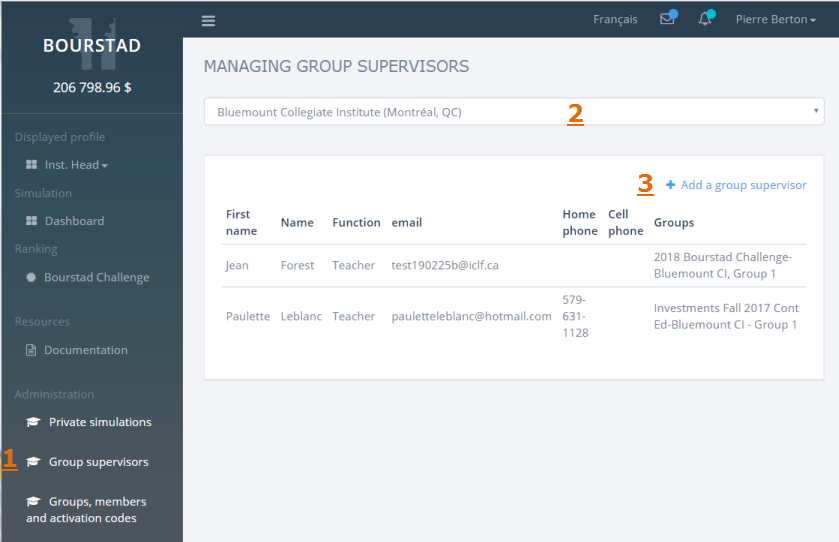
Figure 1. Illustration of the first 3 steps
Request option Group supervisors in the Administration group of the Institutional Head menu
The Manage Group Supervisors webpage is displayed.
Select your school from the drop-down list.
A table of previously named group supervisors and their assignments is displayed. If no group supervisor has been designated yet, only the table column headings are displayed.
Click on the link +Add a group supervisor which appears above the table on the right.
The New Group Supervisor form is displayed.
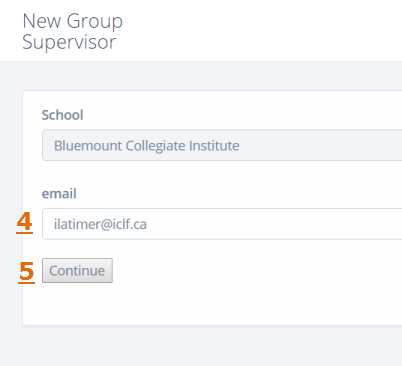
Figure 2. Illustration of the next 2 steps
Enter the email address of the person you want to designate as a group supervisor
Note: This is the email address that serves (or will be used) as the user name in the Bourstad app for the group supervisor to be named.
Click next.
The next steps describe the process followed when the new group supervisor's email address is already registered in the Bourstad application.
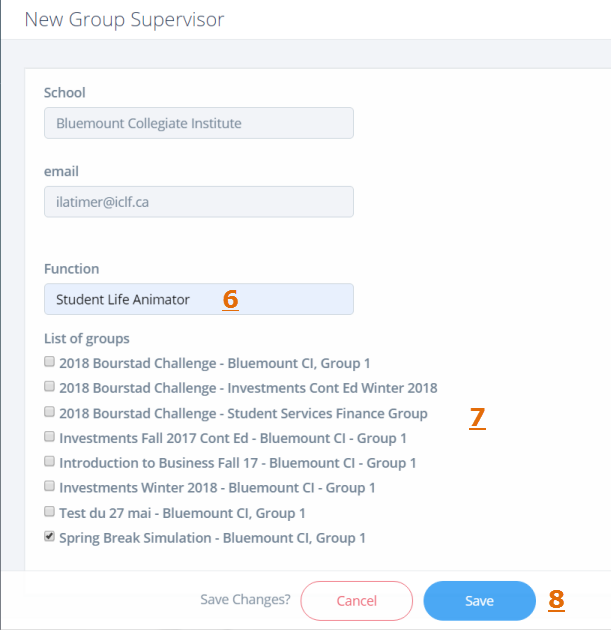
Figure 3. Steps 6 to 8 when the new group supervisor has an account in the Bourstad app
Indicate the job title of this person at your school.
Check all the groups for which the new group supervisor will be responsible.
Note: These choices can be changed later by using the Groups, members and activation codes
feature.
Click Save.
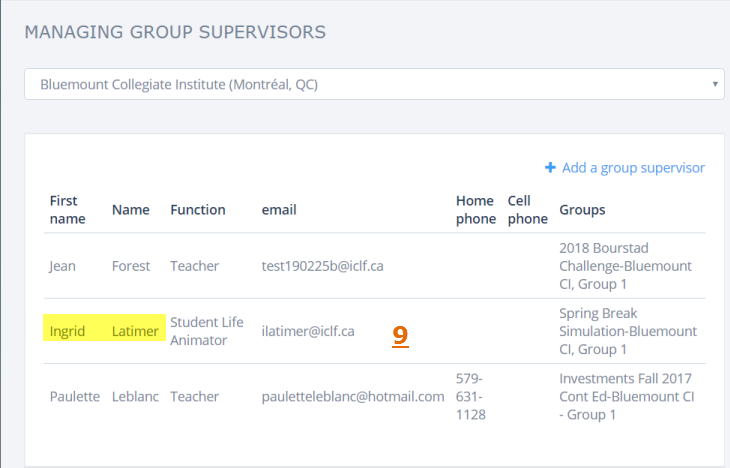
The table of group managers is displayed and the assignment of the new group supervisor
(Ingrid Latimer) appears there.
Figure 4. New supervisor added to the table of group supervisors
The next steps describe the process when the designated group supervisor does not already
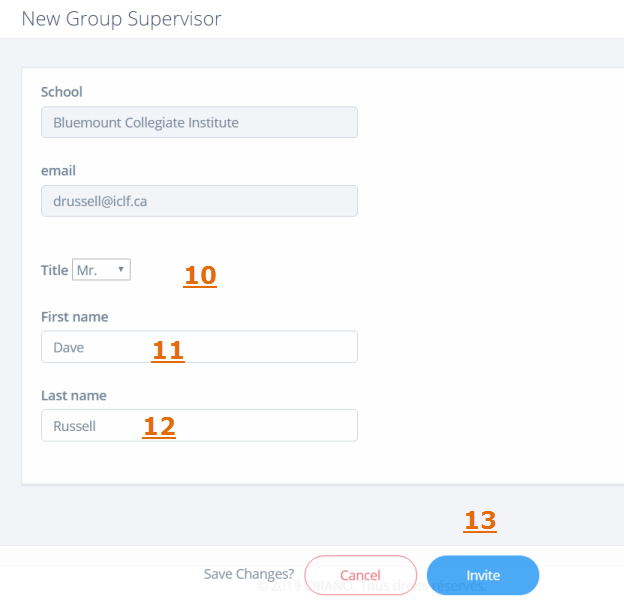
have an account in the Bourstad application.Figure 5. Steps 10 to 13 when the new group supervisor does not have an account in the
Bourstad app
Select the appropriate title.
Enter the first name of the new supervisor.
Enter the last name of the new supervisor.
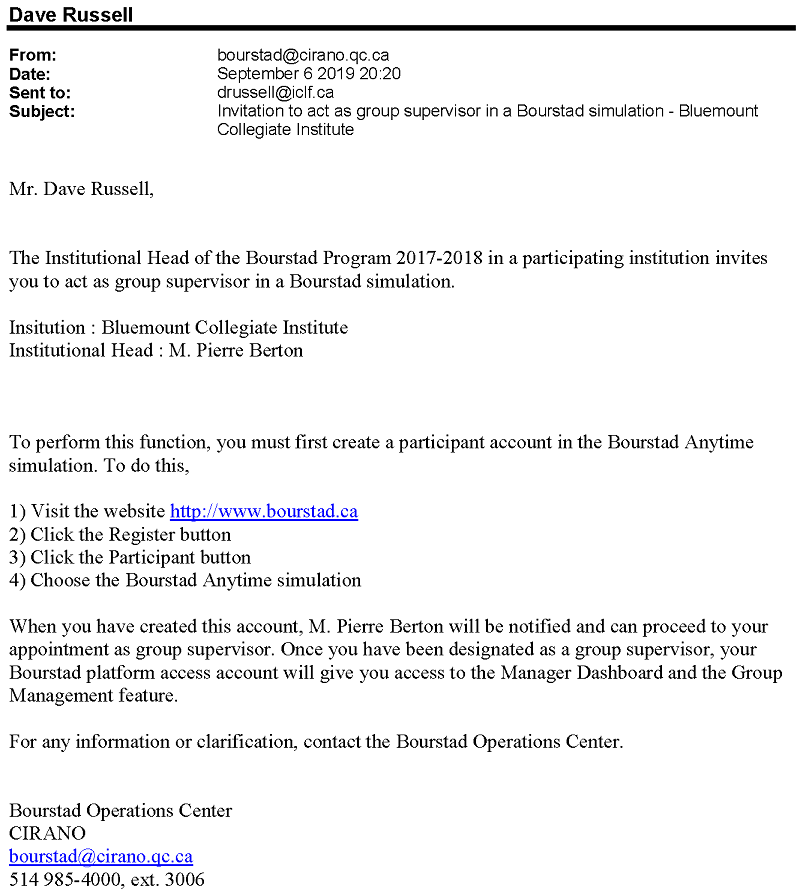
Click Invite to send an email invitation to the new supervisor.
Figure 6. Email sent by the app to the person invited to become a group supervisor
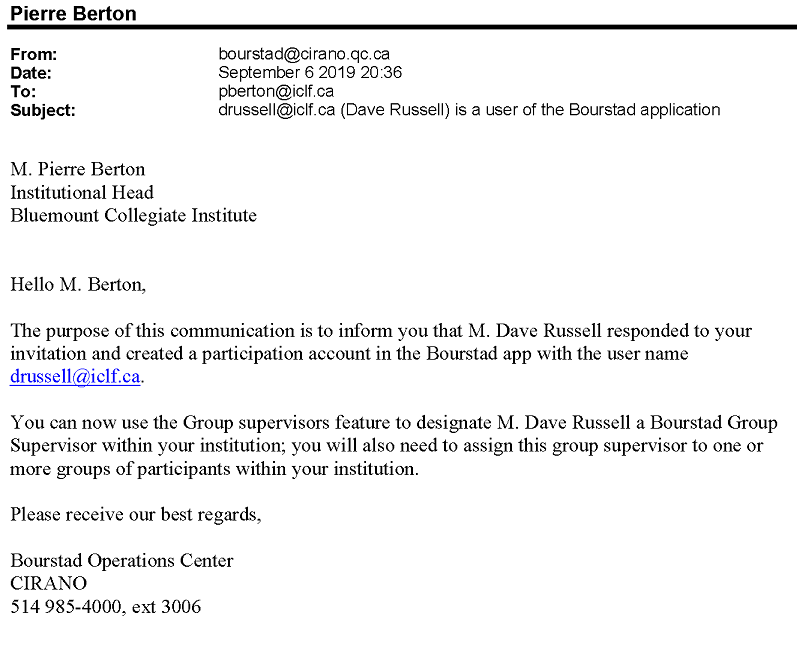
When the invited person creates an account in the Bourstad application, the Institutional Head receives an e-mail notice, which then makes it possible to appoint the supervisor and assign him to different groups of participants.
Figure 7. Email sent by the app to the Institutional Head when the invited group supervisor created their account