Manage activation codes table
The Manage Activation Codes table provides the list of activation codes for a Bourstad Challenge or a private simulation group and allows to execute an action for each code.
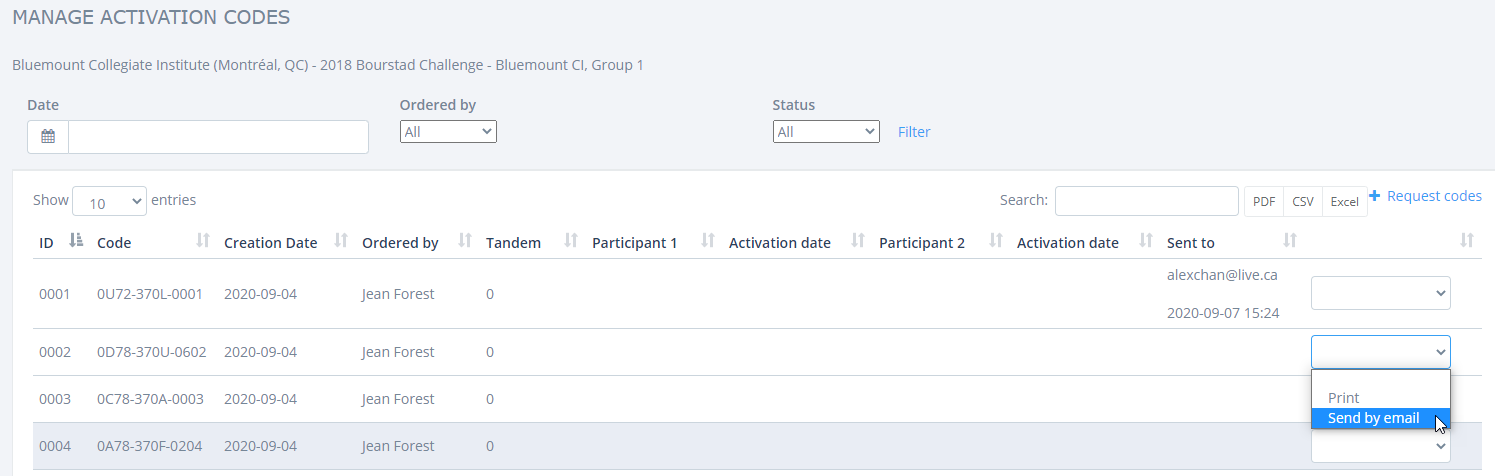
The Manage Activation Codes table can be filtered according to one or more criteria.
- The order date of the codes
- Who ordered the code
- The activation state of the code (activated or not activated)
The contents of the table can be downloaded, by clicking on the appropriate button above the
table in different formats:
- PDF, a file that can be opened with an Adobe Acrobat, Adobe Reader or browsers with a built-in PDF file reader, for example Chrome.
- CSV, a file where data is separated by commas in rows that match the rows of the table.
- Excel, an .xlsx file that can be opened with Microsoft Excel or Google Sheets.
The columns of the Manage Activation Codes table are:
- ID. A sequential number according to the order in which the codes were created for the simulation group to which the table relates.
- Code. The activation code that a participant uses to create an account in this group for this simulation.
- Order date. Date when the activation code was ordered.
- Ordered by. The name of the Institutional Head or Group Supervisor who ordered the activation code.
- Tandem. Takes a value of 1 for a for a tandem account and 0 for an individual
account.Note: tandem accounts may only exist for the Bourstad Challenge.
- Participant 1. The first student who created the account using an activation code. If the account is not a tandem account, it is the only account holder.
- Activation Date. Date of activation of the account by Participant 1.
- Participant 2. Name of the second student who activated the account, for a tandem account
- Activation Date. Date when Participant 2 joined the tandem.
- Sent to. Recipient (s) of an email containing the activation code and instructions for using it; date of this email.
- Untitled column. Action that can be performed on each code
- Print. The code is displayed as a web page in a new tab of the browser.
- Send by email. Dispays an input form to enter the recipient(s) email address(es).