Writing a notification
Teachers can create notifications for participants in the Bourstad Challenge or in a private Bourstad simulation organized at their institution.
The institutional head and group supervisors access the notification system by
requesting the Notifications feature in the teacher's menu. This feature is
available to a leader in both the teacher and participant view profiles.
Note: Please note, however, that students who participate in Bourstad
simulations are not allowed to write notifications.
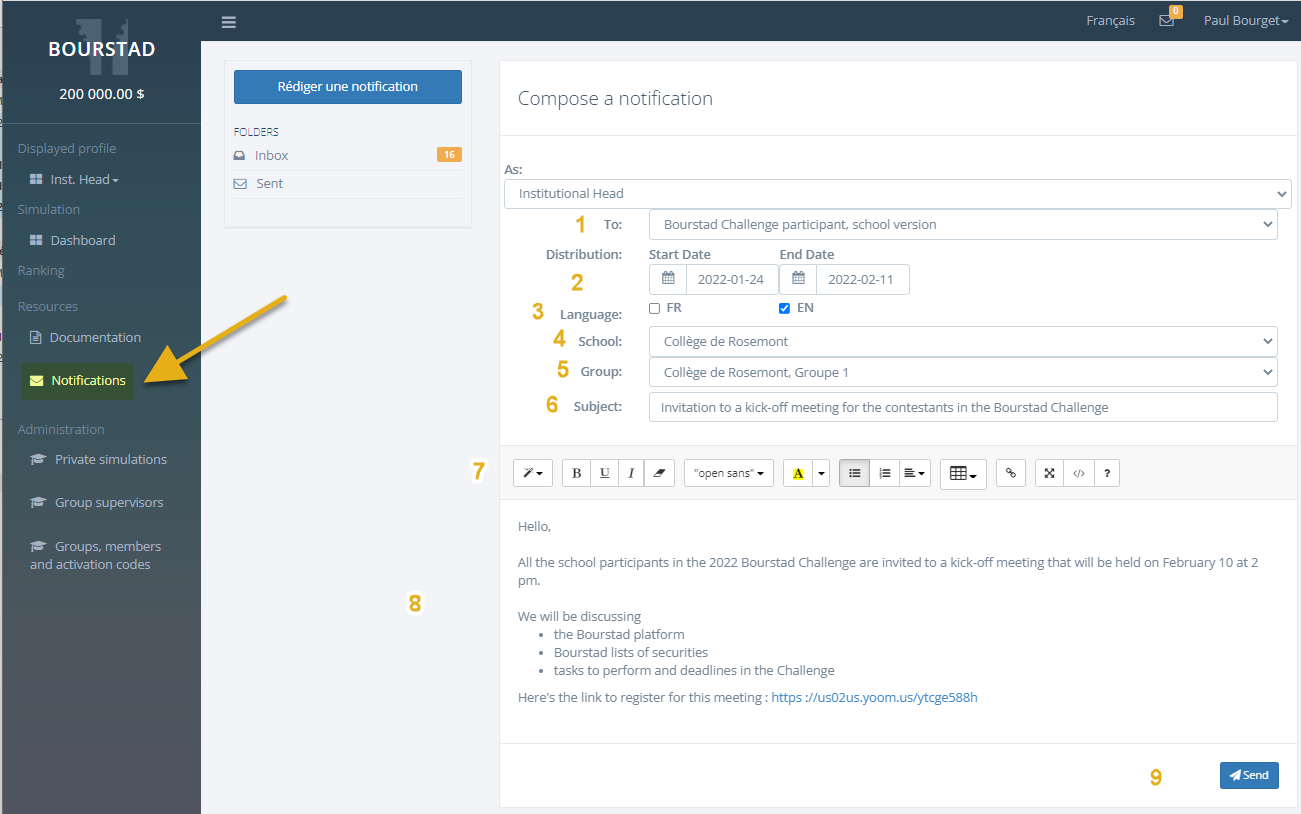
When you click on the Notifications menu choice in the menu, the main page of the notification system is displayed. Then click on the Write Notification button to start writing a notification. The steps to follow are shown below.
-
Choose the type of recipient for the notification:
- Bourstad Challenge participants
- Participants in a private simulation
- Determine the period of time within which the targeted participants who log in to the Bourstad platform will receive the notification.
- Indicate whether the notification is in English or French; a notification can be in both English and French. The participants you target will see the notification regardless of the language choice you make.
-
Select the school for which you are acting in sending this notification.
-
ou have 2 choices to join the participants of a simulation within the
school:
- Target a group of this simulation within your school
- Target all participants of this simulation within your school
- Specify the title of the notification. This is the text that will appear in the notification mini-box when the envelope icon at the top of the screen is clicked.
-
The notification editor toolbar allows you to write a notification in rich
content. These features allow you to :
- format the text
- insert a table
- insert bulleted or numbered lists
- insert tables
- insert hypetext links
- Illustration of the functionalities in the editing area
- Click Send to send the notification