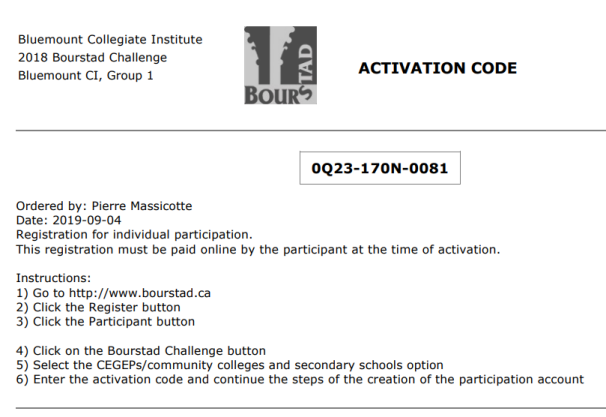
Manage groups table, Request codes action
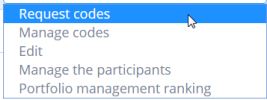
When this action in the Manage Groups table is selected, it displays the activation codes order form.
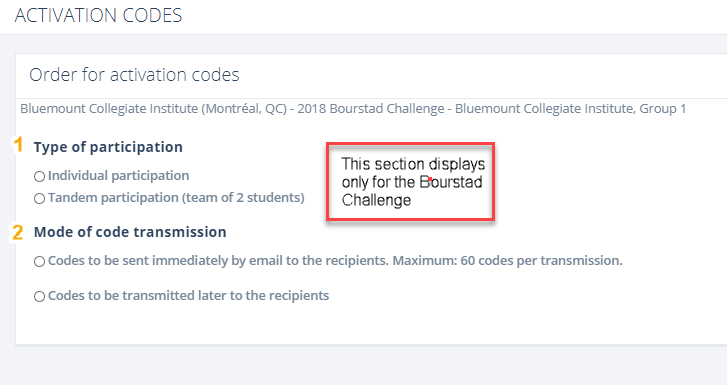
If the simulation concerned is the Bourstad Challenge, the form also includes a section entitled "Type of participation" to choose between individual accounts and tandem accounts.
There are two choices as to how the codes are to be transmitted.
- IImmediate transmission of activation codes by email to the students
This choice allows up to 60 activation codes to be sent to recipients.
Clicking this option will display instructions on how to enter email addresses in an input box.
Figure 2. Ordering codes for immediate email transmission to students 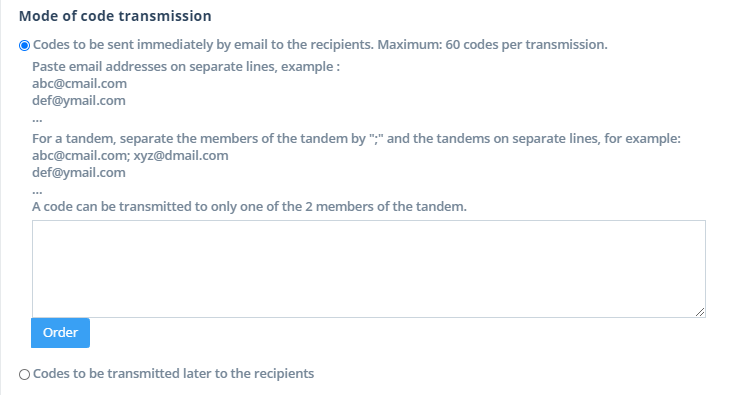
By clicking on the Order button, an email communication will be sent to each recipient with the activation code and instructions to proceed. This communication is identical to the one you can send with the Send by Email action in the Manage Activation Codes table.
- Ordering activaton codes for later transmission to students
Choosing this option will display an input box to indicate the number of activation codes to be ordered.
Figure 3. Order code for later transmission 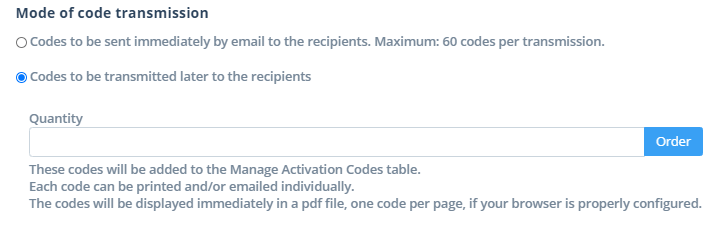
All codes ordered are added to the Manage Activation Codes table.
When an order for further transmission is placed, the ordered codes are displayed in a pdf file.Note: for a pdf document to appear on the screen, it is necessary to use a browser that is correctly set to display popup windows.Figure 4. Display of the ordered codes in a pdf file within a popup window